Pro Tools Keyboard Maestro Automation: Ultimate Workflow Boost
Are you tired of repeating the same tasks while working in Pro Tools? Imagine saving time and boosting your creativity by automating those routine actions.
With Keyboard Maestro, you can turn complex sequences into simple shortcuts that work like magic. This isn’t just about working faster—it’s about working smarter. You’ll discover how to harness the power of Keyboard Maestro automation to transform your Pro Tools workflow, giving you more freedom to focus on what really matters: your music. 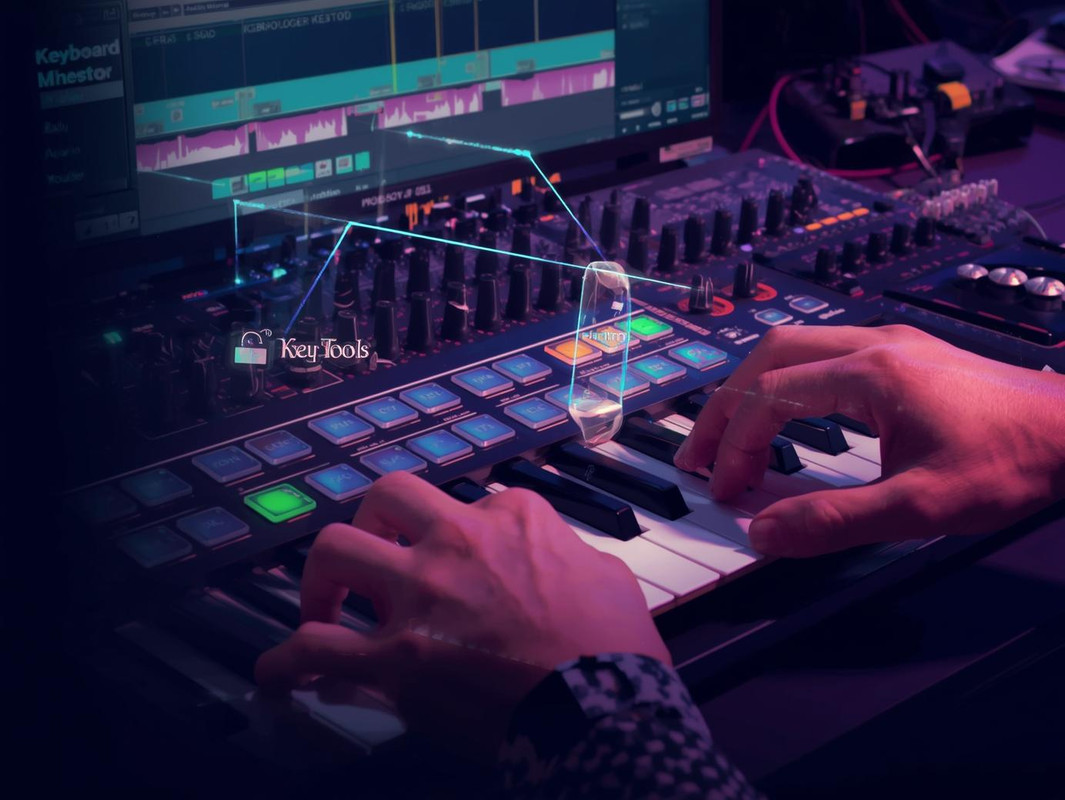
Ready to unlock your full creative potential? Let’s dive in.
Pro Tools Keyboard Maestro Automation
Why Automate Pro Tools With Keyboard Maestro: Automating Pro Tools with Keyboard Maestro saves time and effort. It helps you perform repetitive tasks quickly. This automation reduces mistakes and keeps your workflow smooth. Keyboard Maestro allows you to control Pro Tools with simple commands. You can focus more on creativity and less on routine actions.
Enhance Efficiency In Your Workflow
Keyboard Maestro speeds up common tasks in Pro Tools. You can set macros to open projects or apply effects automatically. This reduces the need for manual clicks and typing. It helps you complete projects faster and with less stress.
Reduce Errors And Improve Consistency
Automation ensures that tasks are done the same way every time. This lowers the chance of errors during editing or mixing. Consistent results improve the quality of your audio projects. Keyboard Maestro helps maintain this level of quality easily.
Customize Controls To Fit Your Needs
Keyboard Maestro lets you create shortcuts that match your workflow. You can combine different actions into one command. This flexibility helps you work in a way that suits you best. It makes Pro Tools more user-friendly and personal.
Essential Keyboard Maestro Macros For Pro Tools
Automated Track Arming And Disarming
This macro lets you arm or disarm multiple tracks fast. No more clicking each track one by one. Just press a key, and your tracks are ready for recording.Quick Session Saving And Backup
Save your session and create backups with a single shortcut. Protect your work without interrupting your flow. It’s a simple way to avoid losing progress.Fast Clip Gain Adjustments
Adjust clip gain levels smoothly using a macro. This helps balance audio clips quickly without using the mouse. Control volume changes with just a keystroke.Toggle Mix/edit Window
Switch between Mix and Edit windows instantly. No need to hunt for buttons or menus. This macro keeps your screen organized and your focus sharp.Insert Marker At Playhead Position
Add markers quickly during playback or editing. Mark important points without stopping your work. It helps you navigate sessions faster and stay on track.Setting Up Keyboard Maestro For Audio Editing
Setting up Keyboard Maestro for audio editing in Pro Tools makes your workflow smoother. It helps you save time by automating repetitive tasks. With the right setup, you can focus more on creativity and less on manual work. This section guides you through the basic steps to configure Keyboard Maestro for audio editing. Follow these simple instructions to get started quickly.
Installing Keyboard Maestro And Granting Permissions
Download Keyboard Maestro from the official site. Open the app and follow the installation steps. Grant accessibility permissions in your Mac’s System Preferences. This allows Keyboard Maestro to control Pro Tools and other apps.
Creating Your First Audio Editing Macro
Open Keyboard Maestro and click “New Macro.” Name it clearly, like “Cut and Fade.” Add actions such as keystrokes or mouse clicks that match Pro Tools commands. Test the macro to ensure it works smoothly.
Assigning Hotkeys For Quick Access
Choose simple hotkeys to trigger your macros fast. Avoid conflicts with Pro Tools shortcuts. Using easy keys helps you keep your hands on the keyboard and speed up editing.
Organizing Macros Into Groups
Group related macros into folders. For example, create groups for cutting, fading, or mixing. This keeps your macros easy to find and manage.
Testing And Refining Your Macros
Run your macros during a Pro Tools session. Notice any delays or errors. Edit the macro steps to improve performance. Repeat until the macro feels natural and reliable.

Credit: www.youtube.com
Streamlining Mixing Sessions With Automation
Automation in Pro Tools saves time and improves mixing quality. It controls volume, effects, and other settings automatically. This reduces errors and keeps sessions organized. Keyboard Maestro helps by creating custom shortcuts and macros. These speed up repetitive tasks and make mixing smoother.
Creating Custom Macros For Repetitive Tasks
Keyboard Maestro lets you build macros to perform repeated actions fast. You can record keystrokes or commands and replay them anytime. This avoids manual work like opening menus or clicking buttons. It helps keep your focus on the mix, not on the software.
Automating Volume And Pan Adjustments
Mixing needs precise control of volume and panning. Keyboard Maestro can automate these changes during playback. It triggers commands that adjust levels at exact points. This keeps the balance perfect without manual tweaking every time.
Speeding Up Plugin Management
Loading and adjusting plugins can slow down a session. Keyboard Maestro automates plugin loading and preset changes. This saves time and keeps your workflow fluid. You spend less time navigating and more time mixing.
Reducing Workflow Interruptions
Switching between tools breaks concentration. Keyboard Maestro combines multiple steps into one shortcut. This keeps your hands on the keyboard and eyes on the screen. It helps maintain your creative flow without interruptions.
Customizing Workflows For Different Projects
Customizing workflows in Pro Tools using Keyboard Maestro can save time and reduce errors. Different projects need different approaches. Tailoring your automation helps fit the unique needs of each session. This way, you work faster and stay organized. Automation can handle routine tasks, like setting up tracks or applying effects. You can create macros that change depending on the project type. This flexibility makes your workflow smoother and less stressful.
Creating Project-specific Macros
Start by identifying tasks repeated in a project. For example, mixing a podcast requires different tools than mixing music. Use Keyboard Maestro to build macros that activate only for certain projects. This keeps your workspace clean and focused.
Adjusting Keyboard Shortcuts For Different Sessions
Shortcuts speed up your editing process. Customize shortcuts to match project demands. For instance, assign keys for quick clip edits in dialogue projects. Change shortcuts for complex music sessions to control effects faster.
Organizing Automation By Project Type
Create folders or groups in Keyboard Maestro to sort your macros. Group them by project type like film, music, or voiceover. This helps you find the right automation quickly. It keeps your system tidy and efficient.
Testing And Refining Automated Workflows
Run your macros in different projects to check performance. Adjust commands if something doesn’t work right. Small changes can improve speed and reliability. Regular testing ensures your workflow stays effective.
Credit: github.com
Troubleshooting Common Automation Issues
Checking Automation Playback Settings
Automation playback settings control how your changes play back. Ensure the Automation Mode is set correctly. Modes like Read, Write, and Touch affect automation behavior. Incorrect modes can stop automation from playing. Switch to Read mode to hear automation without changes.Verifying Keyboard Maestro Macros
Macros run the automation commands in Keyboard Maestro. Check if your macros are enabled and active. Test each macro to see if it triggers the right action. If a macro fails, review the steps and triggers. Simple errors in macros cause automation to break.Ensuring Pro Tools And Keyboard Maestro Compatibility
Software updates can affect how automation works. Make sure both Pro Tools and Keyboard Maestro are up to date. Older versions might not work well together. Check for known issues in the software forums. Compatibility problems often cause unexpected automation errors.Resetting Automation Data
Corrupted automation data can stop smooth playback. Clear or reset automation on problem tracks. Re-record automation if needed. This step often fixes glitches in automation playback. Always save a backup before resetting data.Adjusting System Performance Settings
Low system resources can disrupt automation timing. Close unused applications to free CPU and memory. Set Pro Tools to a higher priority in your system. This helps keep automation playback steady and accurate.Advanced Tips To Maximize Efficiency
Customize Macros For Common Tasks
Create macros for tasks you repeat often. Assign simple keys to complex commands. This cuts down clicks and speeds up editing. For example, set a macro for quick track arming or clip editing.Chain Multiple Actions
Combine several steps into one macro. Start recording, apply effects, and save with one shortcut. This reduces errors and keeps your workflow steady. It also helps when working under tight deadlines.Use Conditional Triggers
Make macros that work only in certain situations. For example, run a macro only if Pro Tools is active. This avoids mistakes and saves system resources. It helps keep your commands precise.Integrate With Other Apps
Connect Keyboard Maestro with apps like Finder or Spotify. Automate file moves or music playback during sessions. This keeps your workspace organized and your mood right. It creates a smooth working environment.Test And Refine Macros Regularly
Check your macros often to find errors. Make small changes to improve them. Testing ensures your automation stays useful and reliable. It helps avoid surprises during important projects.
Credit: www.youtube.com
Frequently Asked Questions
What Is Pro Tools Keyboard Maestro Automation?
Pro Tools Keyboard Maestro automation uses macros to control Pro Tools faster and easier.
How Does Keyboard Maestro Improve Pro Tools Workflow?
It automates repetitive tasks, saving time and reducing manual work in Pro Tools.
Can Beginners Use Keyboard Maestro With Pro Tools?
Yes, beginners can use simple macros to start automating basic tasks in Pro Tools.
What Are Common Tasks Automated By Keyboard Maestro In Pro Tools?
Common tasks include opening sessions, applying effects, and controlling playback with shortcuts.
Conclusion
Pro Tools and Keyboard Maestro work well together for faster editing. You can save time by automating common tasks. This helps keep your focus on making music. Small steps in automation add up to big improvements. Try creating simple macros to see quick results.
Practice often, and your workflow will feel smoother. Automation can make complex projects easier to handle. Start with easy tasks and build from there. Keep exploring new ways to speed up your work. The right tools help you create with less stress.