Keyboard Maestro Pro Tools Automation: Ultimate Workflow Boosters
Imagine saving hours every week by automating your most repetitive computer tasks. With Keyboard Maestro, you can turn complex workflows into simple, one-click actions.
If you want to boost your productivity and take full control of your Mac, this powerful automation tool is made for you. You’ll discover how Keyboard Maestro’s pro tools can transform the way you work, making your daily routines faster, easier, and more efficient. 
Ready to unlock your Mac’s true potential? Keep reading and see how automation can change everything.
Keyboard Maestro Pro Tools Automation
Keyboard Maestro is a powerful tool for automating tasks on your Mac. It helps save time by letting you create custom shortcuts and actions. Getting started with Keyboard Maestro is simple and fun. This section guides you through the basics to begin automating your work quickly.
Installing Keyboard Maestro
First, download Keyboard Maestro from the official website. Follow these steps:
- Go to the Keyboard Maestro website.
- Download the latest version for macOS.
- Open the downloaded file and drag the app to your Applications folder.
- Launch Keyboard Maestro from Applications.
- Grant necessary permissions in System Preferences when prompted.
After installation, you will see the Keyboard Maestro icon in the menu bar. This means the app is ready.
Understanding The Keyboard Maestro Interface
The interface is easy to use and has three main parts:
| Section | Description |
|---|---|
| Macros List | Shows all your created macros and groups. |
| Editor Pane | Design and edit your macros here. |
| Trigger Settings | Set what starts your macro (hotkeys, time, etc.). |
Creating Your First Macro
Follow these steps to create a simple macro:
- Click the “+” button to add a new macro.
- Name your macro (e.g., “Open Safari”).
- Set a trigger by clicking “New Trigger” and choosing “Hot Key.”
- Press the keys you want to use (e.g., Command + S).
- Add an action by clicking “New Action.”
- Choose “Open a File, Folder, or Application.”
- Select Safari or another app.
- Save the macro and test it by pressing the hotkey.
This creates a shortcut to open Safari quickly.
Using Built-in Macro Examples
Keyboard Maestro offers example macros to help you learn:
- Click “File” > “New from Clipboard” to create macros from copied text.
- Explore the “Examples” folder in the Macro Library.
- Import macros by double-clicking the example files.
- Modify these macros to fit your needs.
These examples show common uses and save time.

Credit: github.com
Creating Basic Macros
Keyboard Maestro Pro helps automate tasks on your Mac quickly. Creating basic macros lets you save time by repeating simple actions with one click. These macros are easy to build and useful for daily tasks like opening apps, typing text, or moving files. This section shows how to create your first basic macros in Keyboard Maestro.
Creating A New Macro
Start by opening Keyboard Maestro and going to the Macros section. Click the “+” button to create a new macro. Give your macro a clear name. This helps you find it later easily.
- Choose a macro group where your macro will live.
- Set the macro group to be active for specific apps or always active.
Setting A Trigger
Every macro needs a trigger to start. Triggers are events like pressing a key or launching an app.
- Click Add Trigger.
- Select the trigger type (for example, Hot Key).
- Press the key combination you want to use.
This key combo will run your macro anytime you press it.
Adding Actions
Actions are the steps your macro performs after it triggers. Keyboard Maestro has many actions like typing text, opening apps, or clicking buttons.
- Click Add Action.
- Choose an action from the list or search for one.
- Configure the action’s settings if needed.
You can add multiple actions. They run in order from top to bottom.
Testing Your Macro
After adding actions, test your macro to check if it works right.
- Click the Try button in Keyboard Maestro.
- Watch if the actions happen as expected.
- Edit your macro if something does not work well.
Example: Simple Text Typing Macro
| Step | What to Do | Details |
|---|---|---|
| 1 | Create Macro | Name it “Type Greeting” |
| 2 | Set Trigger | Choose Hot Key: Control + G |
| 3 | Add Action | Type Text: “Hello, how are you?” |
| 4 | Test Macro | Press Control + G and watch the text appear |
Automating Pro Tools Workflows
Automating Pro Tools workflows with Keyboard Maestro saves time and reduces repetitive tasks. It helps streamline your audio editing and mixing process. By setting up custom macros, you can perform complex actions with a single keystroke. This makes your work smoother and more efficient.
Creating Custom Macros For Pro Tools
Keyboard Maestro lets you design macros tailored to your Pro Tools needs. You can automate tasks like opening sessions, applying effects, or exporting files. These macros run simple commands or complex sequences. This frees you from manual clicks and menu navigation.
- Open Pro Tools and load a session
- Apply favorite plugins or presets
- Start or stop recording with one shortcut
- Export audio stems automatically
Using Keyboard Maestro Triggers
Triggers start your macros automatically or by command. They can be hotkeys, typed strings, or time-based events. Triggers make workflow automation flexible and fast. For example, pressing a key combination can launch a series of Pro Tools commands.
| Trigger Type | Description | Example Use |
|---|---|---|
| Hotkey | Starts macro with a key press | Ctrl + Shift + R to start recording |
| Typed String | Runs macro when typing a phrase | Typing “export” to export files |
| Time of Day | Runs macro at set times | Auto-save sessions every 30 minutes |
Combining Actions For Efficiency
Keyboard Maestro lets you combine multiple steps into one action. This reduces clicks and speeds up your workflow. You can chain commands like opening Pro Tools, loading plugins, and starting playback.
- Launch Pro Tools
- Open a specific session
- Load favorite plugins
- Start playback automatically
This combination helps you focus on creativity, not clicking buttons.
Automating Repetitive Tasks
Repetitive tasks waste time and break your focus. Automate these tasks with Keyboard Maestro to keep your flow. Tasks like renaming tracks, organizing files, or setting markers are easy to automate.
- Rename multiple tracks quickly
- Move files to project folders
- Insert markers at set intervals
Automating these tasks keeps your session tidy and consistent.
Using Triggers For Automation
Keyboard Maestro Pro Tools Automation helps you save time by automating tasks on your Mac. One key feature is using triggers to start these automated actions. Triggers are events or actions that tell Keyboard Maestro when to run a macro. You can set many types of triggers based on your needs. This makes your workflow smoother and faster.
What Are Triggers In Keyboard Maestro?
Triggers are signals that start a macro automatically. They can be simple or complex. Examples include pressing a key, opening an app, or connecting a device. Each trigger activates the task you want without manual effort.
- Hotkey Trigger: Start macros by pressing a key combination.
- Application Trigger: Run macros when an app launches or quits.
- Device Trigger: Activate macros when a USB device connects.
- Time Trigger: Schedule macros to run at specific times.
How To Set Up A Basic Hotkey Trigger
- Open Keyboard Maestro and click “New Macro.”
- Choose “Hotkey Trigger” from the trigger options.
- Press the keys you want to use as the shortcut.
- Add actions to the macro like opening apps or typing text.
- Save the macro and test your hotkey.
Hotkeys are the easiest way to start automation quickly.
Using Application Triggers For Context-based Automation
Application triggers run macros when specific apps open or close. Use this to customize your work environment. For example:
| Trigger | Action |
|---|---|
| App Launch | Open related files or set screen brightness |
| App Quit | Close extra windows or save work |
This makes your Mac respond smartly to your work habits.
Combining Multiple Triggers For Powerful Automation
You can set more than one trigger for a macro. For example:
- Run a macro with a hotkey or when a device connects.
- Start automation based on time and app status.
Combining triggers adds flexibility. You control exactly when macros run.
Enhancing Productivity With Custom Actions
Keyboard Maestro is a powerful tool for Mac users who want to automate tasks. It saves time by letting you create custom actions tailored to your workflow. These custom actions help boost productivity by automating repetitive tasks and simplifying complex processes. With Keyboard Maestro, you can design your own shortcuts, scripts, and macros that fit your needs perfectly.
Creating Custom Actions For Everyday Tasks
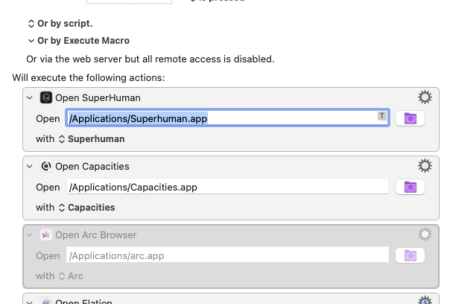
Custom actions let you automate daily tasks like opening apps, filling forms, or managing files. You can build simple macros that run with a single keystroke. For example, you could create a macro to open your email, calendar, and browser at once.
- Save time on routine tasks.
- Reduce errors by automating manual steps.
- Work faster with one-click commands.
These actions help avoid distractions and keep your focus on important work.
Using Conditional Logic To Customize Workflows
Keyboard Maestro supports conditional logic in custom actions. This means macros can change their behavior based on certain rules or conditions. For example, a macro can check if a file exists before trying to open it. Or it can perform different tasks depending on the time of day.
- Check system status or application state.
- Run different sequences based on conditions.
- Make workflows smarter and more efficient.
Using conditions saves effort by tailoring actions to your exact needs.
Combining Actions To Build Complex Automations
Multiple actions can run in sequence to complete larger tasks. Keyboard Maestro allows chaining actions like typing text, clicking buttons, or launching scripts. This lets you automate multi-step processes without manual input.
| Action Type | Example | Benefit |
|---|---|---|
| Open App | Launch Safari | Quick access to web tools |
| Fill Form | Insert login info | Saves typing time |
| Run Script | Backup files | Automates maintenance |
Combining actions creates powerful tools that work exactly as you want.
Credit: github.com
Integrating Keyboard Maestro With Pro Tools Plugins
Integrating Keyboard Maestro with Pro Tools plugins opens new paths for automation in music production. Keyboard Maestro lets you create custom macros that control Pro Tools and its plugins. This integration saves time, reduces repetitive tasks, and improves workflow.
How Keyboard Maestro Controls Pro Tools Plugins
Keyboard Maestro can send keyboard shortcuts and mouse actions to Pro Tools. This allows you to:
- Open and close plugin windows quickly
- Enable or bypass plugins with a single command
- Adjust plugin parameters using keyboard shortcuts
By automating these steps, you focus more on creativity and less on clicking.
Setting Up Macros For Plugin Automation
Start by identifying frequent plugin tasks. Then, create macros in Keyboard Maestro to automate them.
- Open Keyboard Maestro and create a new macro.
- Assign a trigger, such as a hotkey or typed string.
- Add actions like “Type a Keystroke” or “Move and Click Mouse.”
- Test the macro with Pro Tools running.
This step-by-step setup ensures smooth control of your plugins.
Examples Of Useful Plugin Automation
| Task | Macro Action | Benefit |
|---|---|---|
| Toggle EQ plugin on/off | Send keyboard shortcut to bypass plugin | Quickly compare sound with and without EQ |
| Open reverb plugin window | Move mouse and click on plugin insert slot | Access controls without searching menus |
| Reset compressor settings | Activate preset reset via keystroke | Speed up plugin parameter setup |
Tips For Smooth Integration
- Use consistent keyboard shortcuts in Pro Tools for easier macro creation.
- Keep macros simple to avoid errors.
- Test macros step-by-step before using them in sessions.
- Label macros clearly to find them fast.
Troubleshooting Common Automation Issues
Keyboard Maestro Pro Tools Automation simplifies repetitive tasks, saving valuable time. Yet, automation can sometimes face issues that stop workflows. Troubleshooting common automation problems helps maintain smooth operation. Small errors often cause big disruptions. Identifying and fixing these quickly improves productivity and reduces frustration.
Identifying Trigger Failures
Triggers start macros in Keyboard Maestro. If a macro does not run, check these points:
- Trigger type: Confirm the trigger suits your need (hotkey, time, device, etc.).
- Conflicts: Other apps or macros may block the trigger.
- Keyboard shortcuts: Ensure hotkeys do not clash with system shortcuts.
Use Keyboard Maestro’s debug window to watch triggers activate in real time.
Fixing Action Errors
Actions perform tasks inside macros. Errors here stop the entire process. Common causes include:
- Incorrect input: Wrong file paths or names cause failures.
- Unsupported commands: Some actions may not work in certain apps.
- Permission issues: Macros may lack access to control apps or files.
Test each action separately. Adjust inputs or permissions as needed.
Dealing With Timing Problems
Automation often depends on timing. Delays or fast execution can cause errors. Look for:
| Problem | Possible Cause | Solution |
|---|---|---|
| Macro runs too fast | Target app not ready | Add pauses or wait actions |
| Macro misses input | System lag or slow response | Increase delay between actions |
| Actions overlap | Concurrent macros running | Use mutex to prevent overlap |
Checking Macro Permissions
macOS requires apps to have permission for automation control. Lack of permission stops macros. Check these steps:
- Open System Preferences > Security & Privacy > Privacy.
- Select Accessibility and Automation sections.
- Make sure Keyboard Maestro and Pro Tools have checkmarks.
- Restart apps after changing permissions.
Using Logs And Debugging Tools
Keyboard Maestro offers built-in tools for troubleshooting:
- Macro Debugger: Shows step-by-step execution.
- Logs: Records macro runs and errors.
- Try running macros manually to spot issues.
Debugging simplifies finding exact problem points in complex macros.
Credit: www.skillshare.com
Frequently Asked Questions
What Is Keyboard Maestro In Pro Tools Automation?
Keyboard Maestro is a Mac app that automates tasks in Pro Tools to save time.
How Does Keyboard Maestro Improve Pro Tools Workflow?
It runs macros that perform repetitive Pro Tools actions quickly and accurately.
Can Keyboard Maestro Control Pro Tools Plugins Automatically?
Yes, it can open, close, and adjust plugins with custom keyboard shortcuts.
Is Keyboard Maestro Easy To Set Up For Pro Tools?
Setting up macros is simple and requires no coding skills for basic tasks.
What Tasks Can Keyboard Maestro Automate In Pro Tools?
It can automate track control, plugin management, session navigation, and more.
Conclusion
Keyboard Maestro Pro Tools automation saves time and reduces errors. You can create custom shortcuts that fit your work style. It helps you focus on important tasks, not repetitive ones. The tool is easy to learn with practice. Small steps lead to big improvements in productivity.
Try using it daily to see real benefits. Automation makes your workflow smoother and faster. Keep exploring its features to find what suits you best. Simple tools can make a big difference in your work.